Format
A podcast is an educational talk about the topic. A story turns it into a narrative adventure. A poem puts it into rhythmic verse.
HootPODS is a family podcast app for iPhone. Give it a topic, choose who is listening, and it writes and narrates a podcast, story or poem in about a minute. Here is every step, from the first idea to the coloring page.
Type a question, browse ideas, snap a photo, find a place nearby or paste a link.
Pick a child profile, or make the episode for a general audience.
Podcast, story or poem. 1, 3, 5, 7, 10 or 12 minutes. Two hosts or one narrator, in any of 15 languages.
The app shows the price in credits first. The episode is ready in about a minute, and you can start listening before it is finished.
Play it anywhere, read along, open the notes for grown-ups, and print a coloring page from the story.
With HootPODS you can make a podcast from any topic. It can be as big as black holes or as small as "why do cats purr?" Open Create Podcast and type the question in your own words.
Tip: use the words your child used. "How do volcanoes work, and why do some of them erupt?" is a better starting point than "volcanoes".
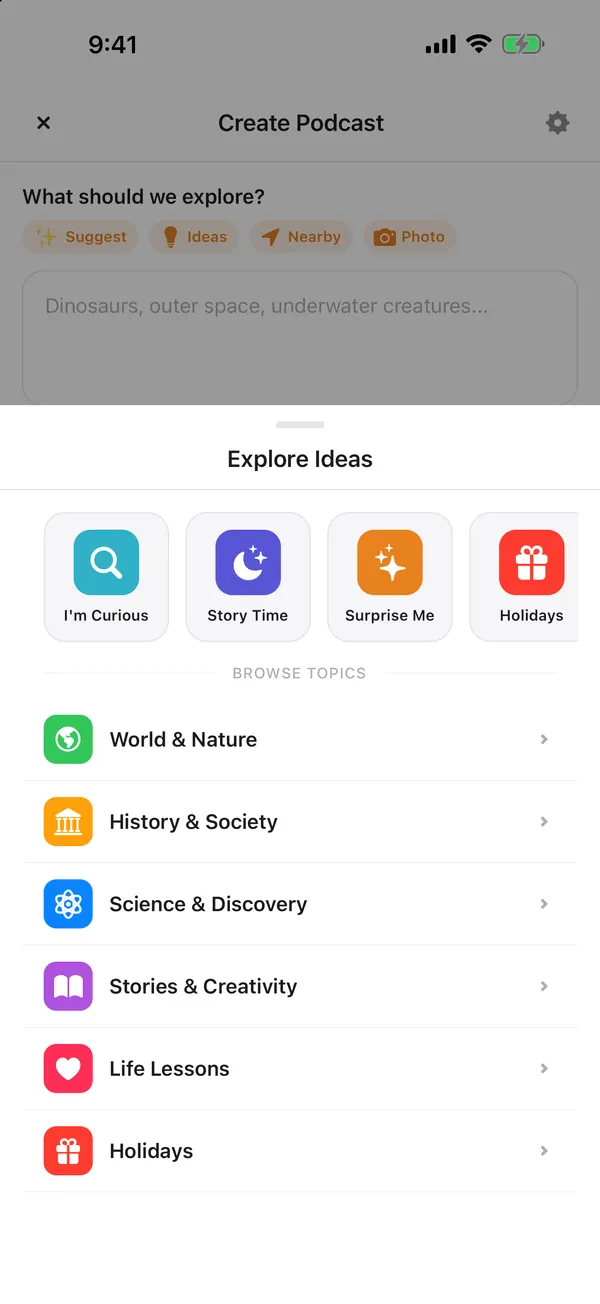
Stuck for an idea? Explore Ideas has 6 groups and 30 categories, from space and animals to myths and holidays. Or tap Surprise Me and get a topic in one tap.
Take a photo or pick one from Photos: a leaf, a shell, a statue at a museum. HootPODS suggests 3 to 5 questions about it, and you choose one. The photo is sent to OpenAI to analyze it.
See museums, libraries, zoos, aquariums, parks and historic sites around you, and make an episode about the place you are visiting. Your location is not sent to HootPODS.
Read a good article about the topic? Paste the link, and HootPODS turns it into an episode your family can listen to together.
Under "Who's listening?" pick a child profile, or choose a general audience for the whole family.
A child profile can hold:
Pick a profile and the episode is written for that child. That is how HootPODS makes personalized audio stories and podcasts. Profiles are optional, and every plan includes unlimited profiles, so brothers and sisters can each have their own.
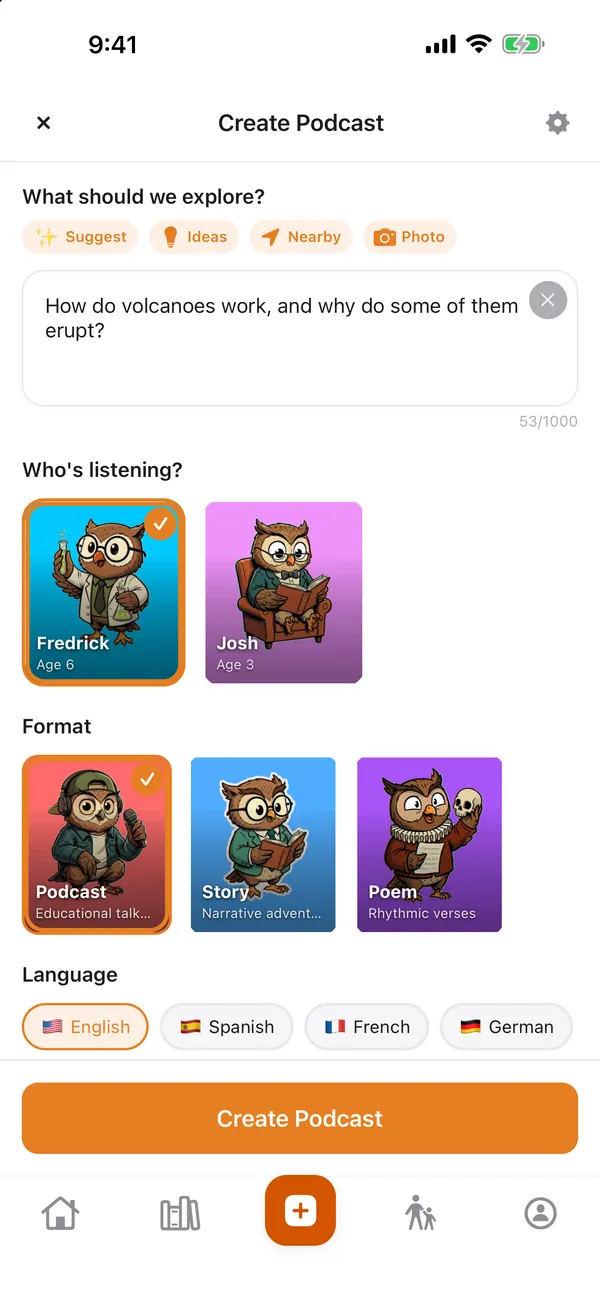
A podcast is an educational talk about the topic. A story turns it into a narrative adventure. A poem puts it into rhythmic verse.
1, 3, 5, 7, 10 or 12 minutes. One minute answers a quick question. Ten or 12 fills a longer drive.
Two hosts talk the topic through, or a single narrator tells it. Standard voices are 3 host pairs and 6 narrators. Premium voices are three expressive two-host pairs, Pops & Finn, Sage & Pip and Luna & Kai, for episodes up to 7 minutes.
Episodes can be in 15 languages: English, Spanish, French, German, Italian, Portuguese, Dutch, Polish, Russian, Japanese, Korean, Chinese, Arabic, Hindi and Turkish. The app itself is in English.
Making a story? Set the character, the setting, the tone, the conflict and the theme. Tones include "spooky but safe" for listeners who like a little shiver. With one calm narrator, HootPODS works as a bedtime story app too.
Choose K–2, 3–5, 6–8 or 9–12. Pick the level that fits the listener, not only their grade at school.
Before you tap Create Podcast, the app shows what the episode will cost in credits.
HootPODS then writes, narrates and illustrates the episode. It takes about a minute. You can start listening while it is still being made, or put your iPhone down and wait for the notification that says it is ready.
Every episode gets its own cover art, so it is easy to find again in your library.
The very first time, you sign in with Apple, Google or email. An existing HootPODS account works, with the same credits. Then the app shows exactly what it sends to the AI services that write, narrate and illustrate episodes (OpenAI, ElevenLabs and Google), and asks for a parent's OK and date of birth.
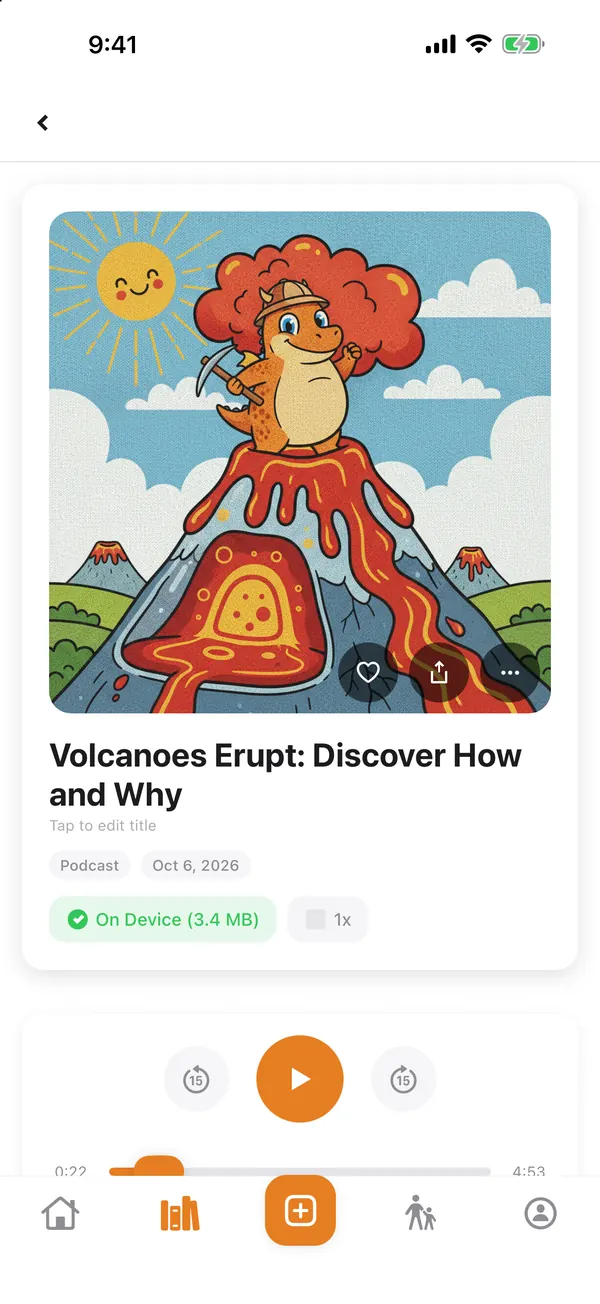
The player keeps going in the background and on the lock screen, so the phone can go in a pocket or sit face down. Change the speed from 0.5× to 2×, and play through AirPlay or Bluetooth speakers and headphones.
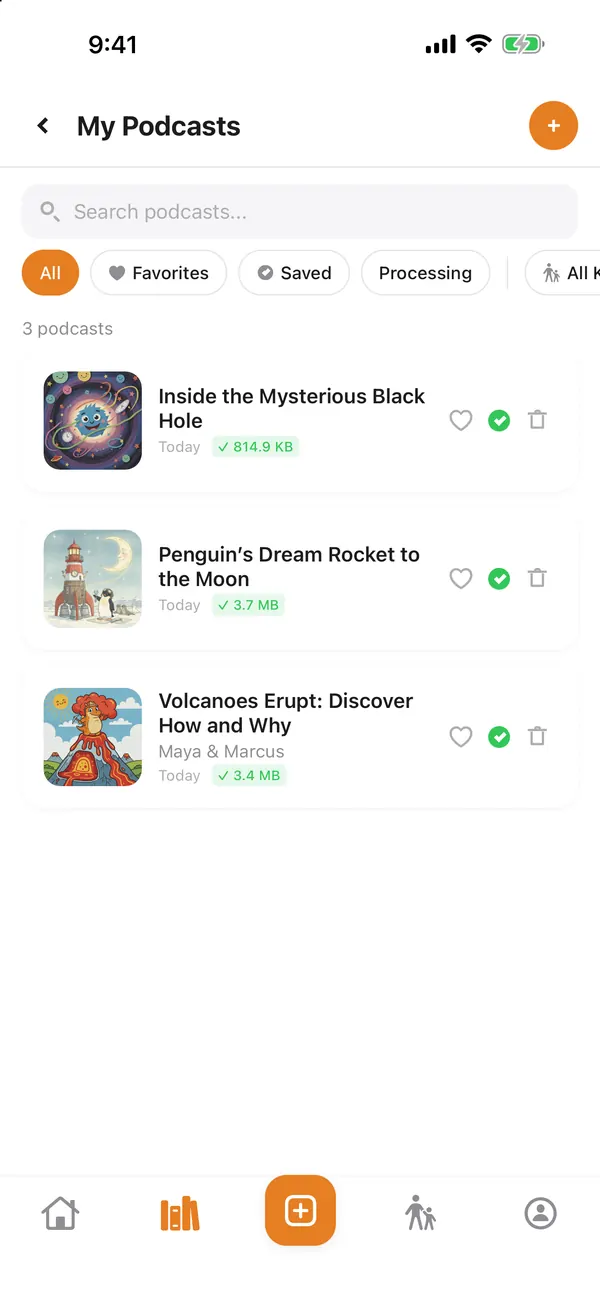
Every episode is saved on your iPhone for offline listening, so it plays on a plane or out of signal. Turn on iCloud backup if you want a copy. In the library you can mark favorites, rename episodes, ask for new cover art, or delete the ones you are done with.
On Home, Up Next mixes new HootPODS Originals, our free family podcast, with your unfinished and unplayed episodes. There is no auto-play, so when an episode ends, nothing else starts.
Turn on sight words in a child's profile, and their episodes become reading practice. The read-along transcript follows the audio line by line and highlights the sight words as they are spoken. Episodes made without sight words show the plain transcript instead.
There are three ways to add words:
Each word sits in This week or Already know. Episodes use this week's words the most and keep known words in the mix for review. Our parents' guide has a simple read-along routine to try at home.
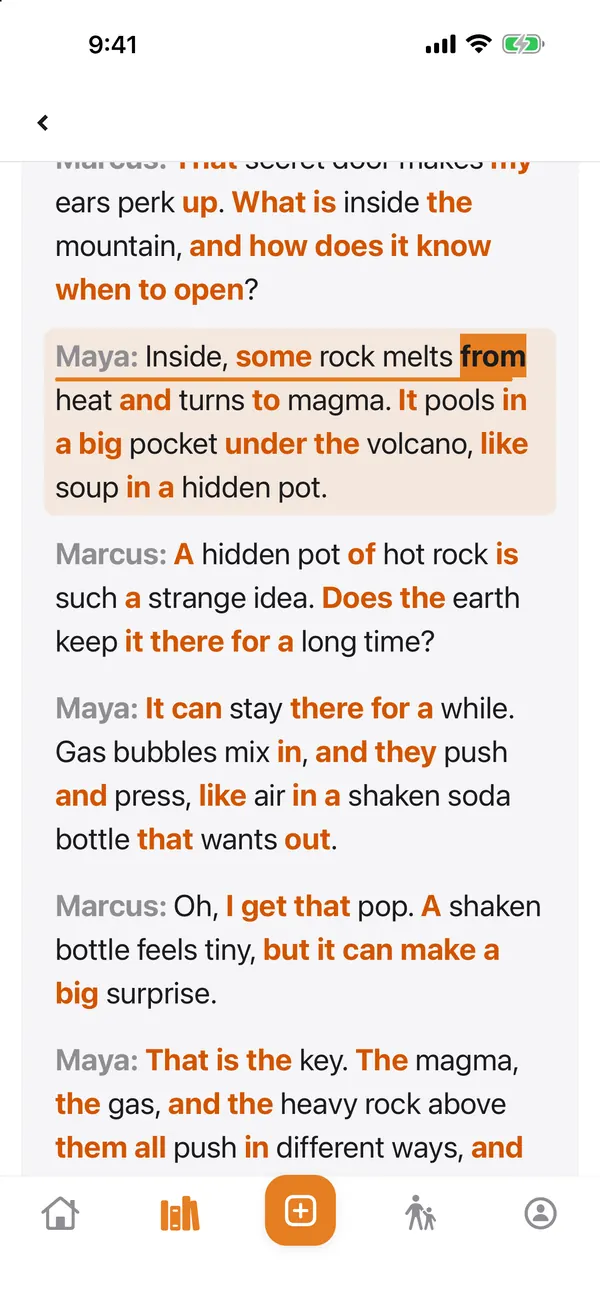
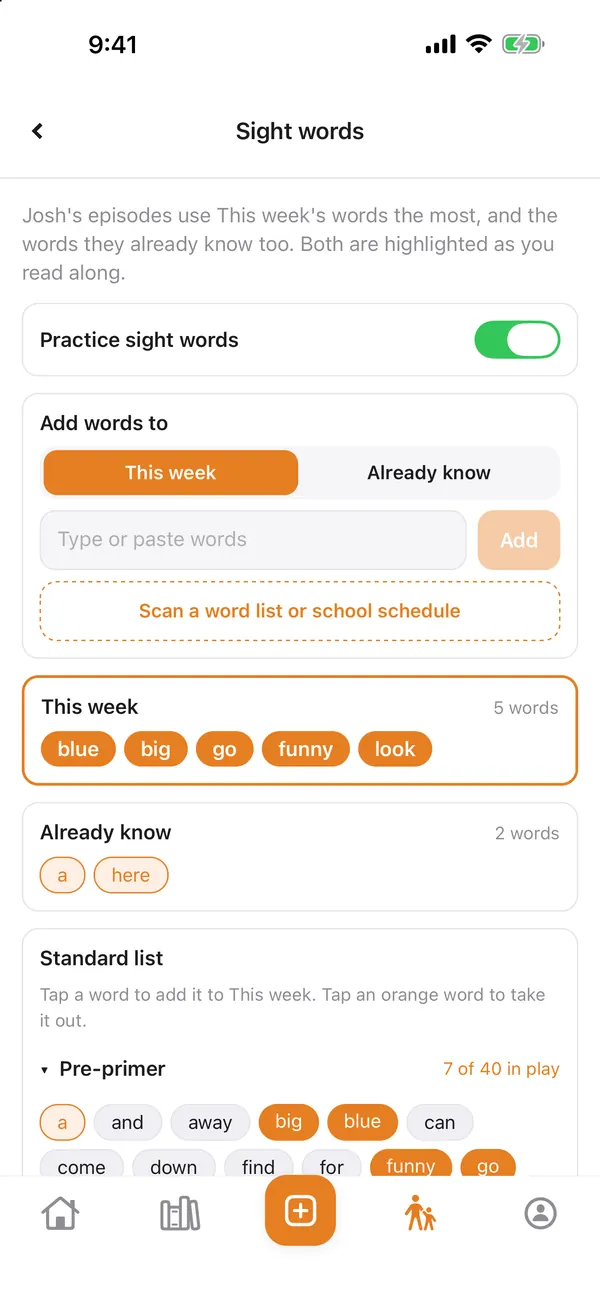
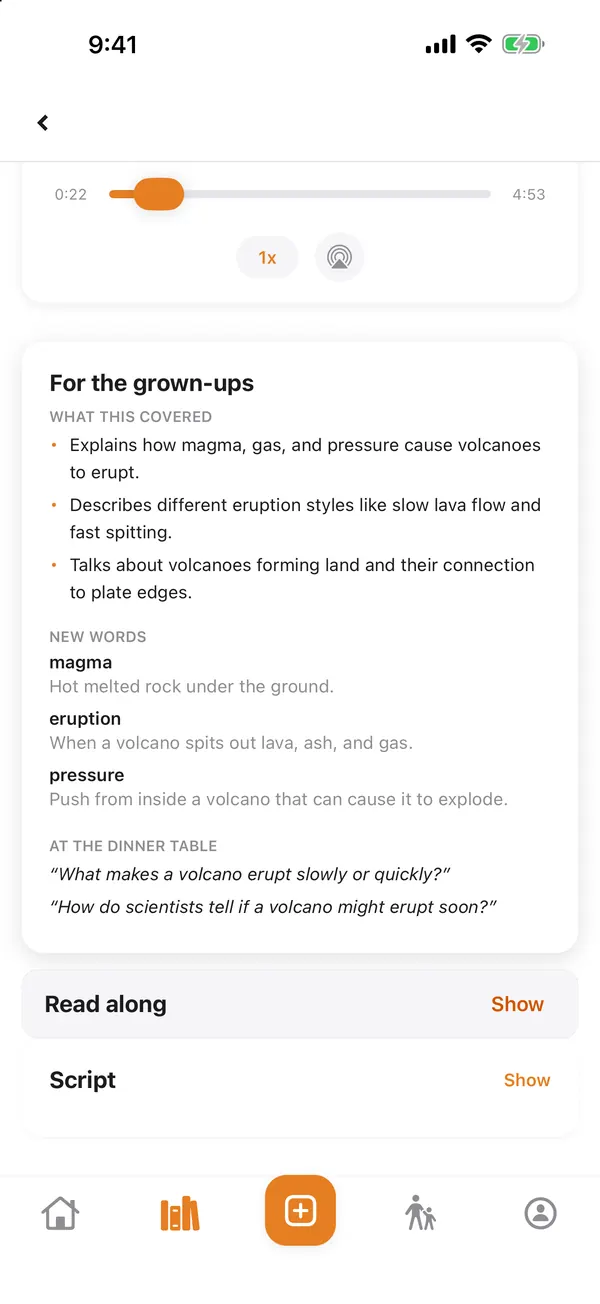
Below the player, the For the grown-ups card gives you:
The book suggestions link to Amazon or Audible, and we may earn a commission if you buy.
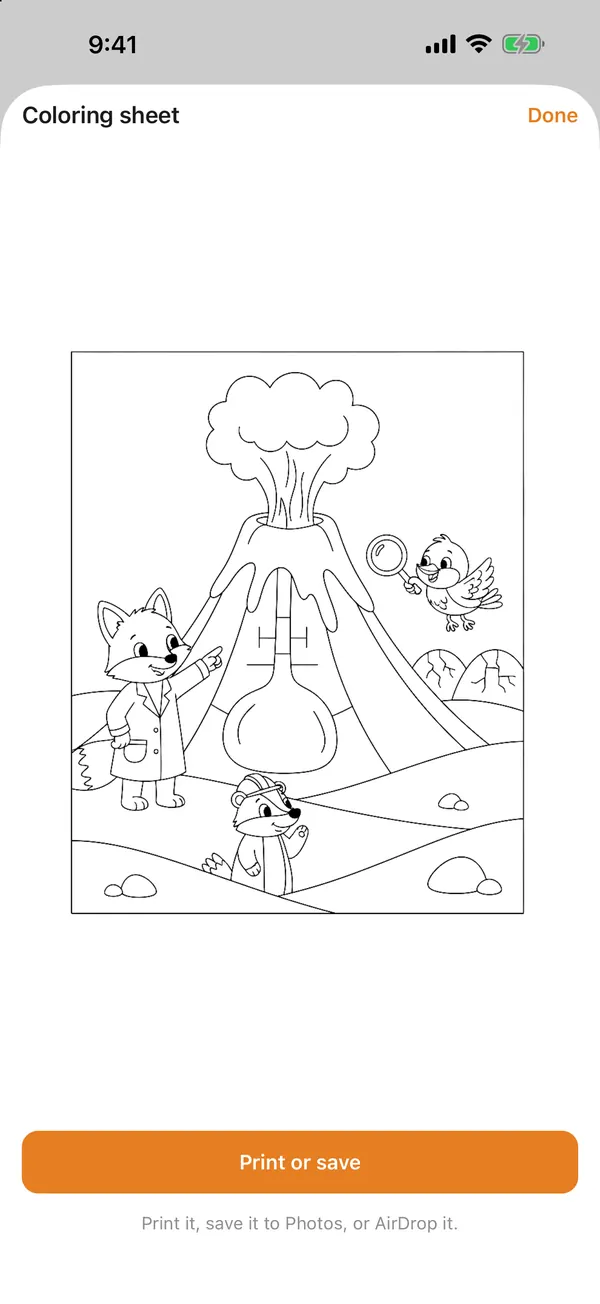
Each episode can have one black-and-white coloring page drawn from the story. Not quite right? Redraw it, up to two times. Then print it, save it to Photos, or AirDrop it.
Copy a link, or share by Messages, WhatsApp, X and more. For Instagram, HootPODS makes a 15-second clip for your Story.
Sharing, printing or saving a coloring page, and links that leave the app all ask a quick multiplication question first. You can turn the check off in Profile.
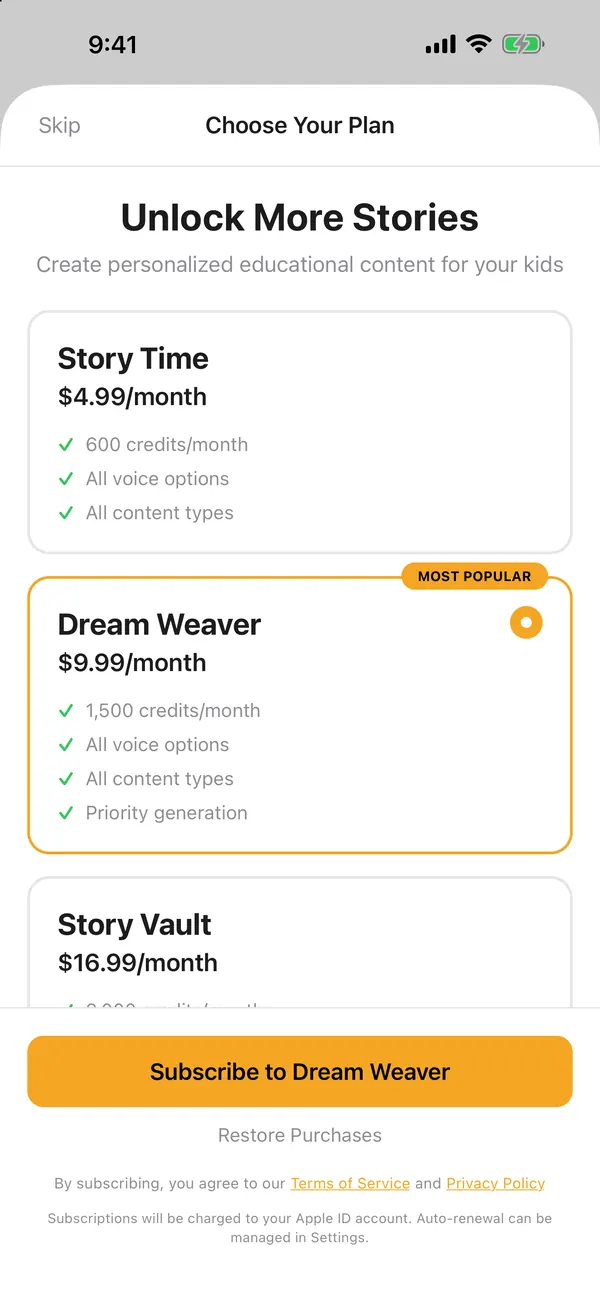
Creating an episode uses credits. Standard narration costs 10 credits a minute and premium narration costs 40. A 5-minute standard episode is 50 credits. The same length with premium voices is 200. The app shows the price before you create, every time.
New accounts start with 200 free credits, and free accounts are topped back up to 100 credits each month. When you want more, monthly plans run from Story Time at $4.99 for 600 credits to Story Master at $24.99 for 6,000. A one-time Credit Pack adds 300 credits for $3.99.
Plans are bought in the app with your Apple account. To cancel, use your Apple Account's subscription settings, like any App Store subscription: on iPhone, Settings, then your name, then Subscriptions. Step-by-step help covers iPhone, iPad, Mac and online.
Free to download, with 200 free credits to start. iPhone, iOS 18.6 or later.